 BIGRIYO


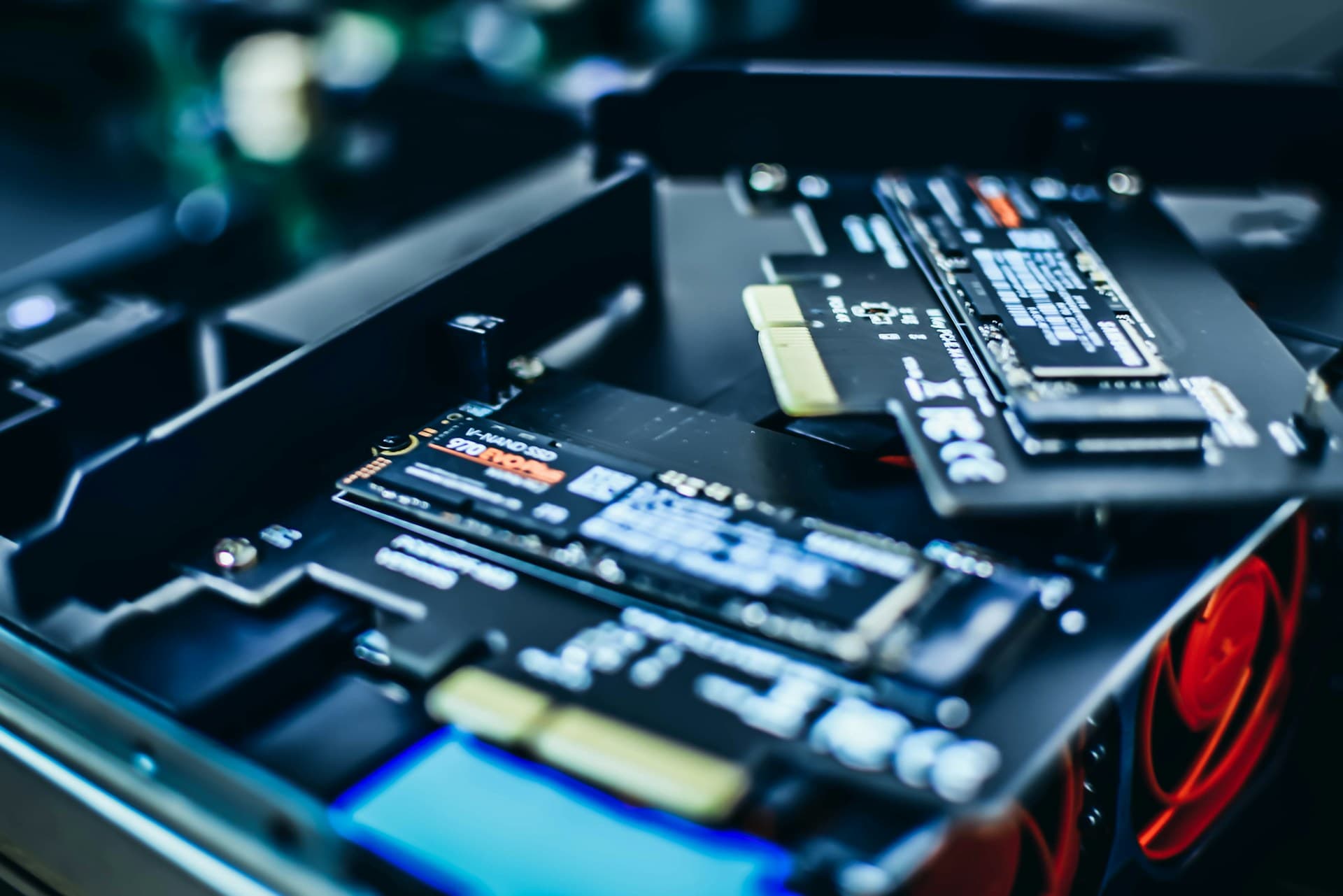


The Solid State Drive (SSD) Speed Factor
If your laptop takes several minutes to boot into Windows or disk usage sits at 100% in Task Manager, your traditional Mechanical Hard Disk (HDD) is the bottleneck.
Replacing a mechanical hard drive with an NVMe or SATA SSD increases boot speeds by 5x to 10x, making application loads virtually instantaneous.
Mechanical drives rely on spinning magnetic platters and physical read/write heads with slow seek times. SSDs store data on flash memory chips with zero moving parts, providing near-instant access times.
When Does Adding RAM Help?
Random Access Memory (RAM) acts as your system's short-term workspace. If your laptop stutters when opening multiple browser tabs, streaming videos, or running multitasking applications, upgrading from 4GB or 8GB to 16GB dual-channel RAM eliminates memory choking.
RAM doesn't make raw processing speeds faster, but it stops your system from slowing down during heavy workflows.
When available physical RAM runs out, Windows uses virtual memory page files on your hard drive, leading to massive system lag.
Understanding Single-Channel vs. Dual-Channel RAM
Installing two identical RAM sticks (e.g., two 8GB sticks) enables dual-channel memory mode. This doubles the memory bus width and data transfer rate between the CPU and memory controller, offering up to a 15-20% boost in integrated graphics and gaming performance.
Which Upgrade Should You Prioritize?
If you currently operate on an HDD, an SSD upgrade offers the single most impactful performance gain. For systems that already have an SSD but freeze under heavy multitasking, a RAM capacity expansion is the ideal next move.
At BIGRIYO, we offer disk cloning services so you can upgrade to a high-speed SSD without losing your personal files, programs, or operating system settings.